How to Recover Deleted Videos From an SD Card on Mac Without Overwriting Them
Sep 10, 2026
VMPL
New Delhi [India], September 10: Lost Camera Footage? Recover Deleted SD Card Videos on a Mac. Deleting one photograph may cost you one frame. Deleting one video can mean losing an entire interview, drone flight, wedding speech, performance, or action sequence.
That difference matters because video files are much larger and can be stored differently from still images.
If you accidentally delete footage from an SD card and plan to recover it using a Mac, stop recording immediately.
Do not shoot a quick test clip. Do not format the card. Do not use the source storage for anything else.
With modern 4K, high-frame-rate, and high-bitrate recording, even a short new clip can write gigabytes of data onto the card and potentially overwrite the video you are trying to recover.
Why Video Recovery Can Be Harder Than Photo Recovery
Video recovery introduces several complications that do not always apply to still images.
Video Files Are Larger
A JPEG photo might occupy several megabytes. A long 4K camera clip can occupy many gigabytes.
Large files have more data that must remain intact for a complete recovery.
Video May Be Fragmented
Storage devices do not always keep every part of a large video file in one continuous physical area.
Action cameras, drones, and digital cameras may write large video files in fragments across the memory card. Recoverit’s current memory-card workflow specifically addresses fragmented video recovery for Mac creator devices.
If only part of that fragmented data survives, a recovered file may exist but fail to play correctly.
The Recording May Never Have Finalized
Deletion is not the only cause of missing footage.
A battery failure, drone crash, sudden shutdown, or card removal can interrupt recording before the camera finishes writing the file structure.
In those cases, the problem may involve both recovery and file corruption.
That leads to an important distinction:
Finding a video file does not automatically mean the video is complete and playable.
Stop Creating New Video Data Immediately
The overwrite risk is especially serious with video.
A creator who accidentally deletes an SD card photo and takes one additional picture creates some new data.
A creator who records another twenty minutes of 4K footage may create tens of gigabytes.
Therefore, avoid the common instinct to put the card back into the camera to see whether it still records normally.
If the missing footage matters, retire the card from production until recovery is complete.
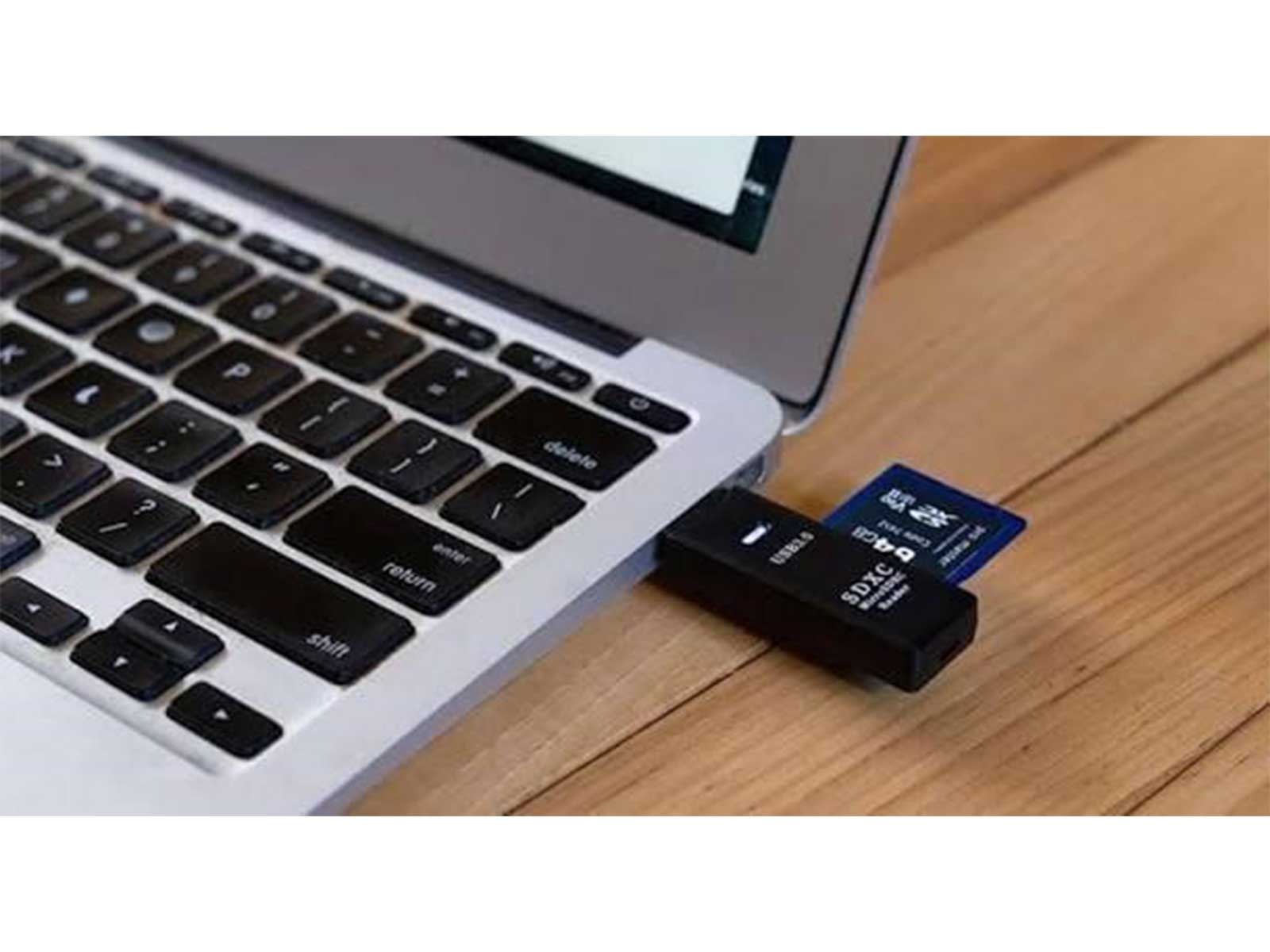
Remove it safely and connect it to the Mac through a reliable card reader.
Check Whether the Footage Already Reached Your Mac
Before scanning the card, search the production workflow for another usable copy.
Apple’s Image Capture supports importing both images and video from compatible cameras and storage devices.
Photos can also import video from connected devices.
Beyond Apple’s built-in apps, look at:
* Movies
* Finder project folders
* Final Cut Pro media locations
* Premiere Pro project media
* DaVinci Resolve source folders
* an external editing SSD
* a NAS
* camera proxy folders
* cloud backups
* a secondary recording card
Be careful with proxy files.
A small proxy used for editing is not the same as the original 4K, 6K, high-frame-rate, or high-bitrate camera source.
If the production requires the original quality, confirm the resolution, codec, duration, and file size before considering a backup complete.
Recover Deleted SD Card Videos on Mac With Recoverit
If the original clip exists only on the SD card and the storage is still detected consistently by macOS, scan the card before recording, formatting, or repairing anything.
Wondershare Recoverit is data recovery software for Windows and Mac with a memory-card workflow for photos, videos, RAW media, and other creator files. For video-heavy cards, its current recovery technology also addresses fragmented files produced by action cameras, drones, and digital cameras. Recoverit works with computers and connected storage rather than recovering data from the internal storage of a phone.
Step 1: Connect the SD Card to the Mac
Use a reliable reader and a stable USB connection.
If macOS displays a formatting or initialization prompt, cancel it.
Open Recoverit and choose the card from the available storage devices.
Step 2: Scan the Full Card
Start the scan rather than looking only at one surviving folder.
Deleted video may no longer be referenced through the original directory structure.
Keep the card connected and avoid other read/write tasks during the process.
Step 3: Narrow the Results to Video
Filter around the formats used by your camera or recorder.
Depending on the device, these may include:
* MP4
* MOV
* MTS / M2TS
* MXF
* AVI
* related video files
Large-capacity cards can return thousands of unrelated photos, thumbnails, and sidecar files. Filtering by media type and size makes the review more practical.
Step 4: Preview and Verify Likely Clips
Where preview is available, use it to identify the correct content.
Check:
* the subject,
* approximate duration,
* beginning and end of the clip,
* whether playback starts,
* obvious corruption or missing sections.
Do not assume that seeing the right first frame proves that the entire recording survived.
Recoverit’s current GoPro recovery guidance notes that recovered high-resolution MP4 footage may still suffer from fragmentation or missing segments and should be tested after export.
Step 5: Recover to Fast Mac Storage
Save the recovered footage to the Mac’s internal SSD or another external drive with enough free capacity.
Do not write it back to the source SD card.
For large productions, make sure the destination has significantly more space than the total footage you intend to recover.
After export, play the clips from beginning to end or inspect them in your NLE.
What If the Video Is Found but Won’t Play?
This is where recovery and repair should be separated.
Video recovery attempts to retrieve missing data from the storage device.
Video repair works on a video file that already exists but is damaged, incomplete, or structurally corrupted.
A recovered video might fail to play because:
* part of it was overwritten,
* fragmented sections are missing,
* the container header is damaged,
* the recording never finalized,
* only a proxy or low-resolution related file survived,
* the file was already corrupt before deletion.
If the missing data has genuinely been overwritten, no repair tool can recreate the original captured frames.
If the data is present but the recovered file structure is damaged, a separate repair workflow may be relevant after recovery.
Final Thoughts
Deleted SD card video recovery on Mac is particularly sensitive to new writes because video files are large and can be fragmented.
Stop recording, check whether an original copy already exists in your Mac editing workflow, and preserve the card before scanning it.
If the card remains readable, Recoverit can provide a structured scan, filtering, preview, fragmented-video recovery, and export workflow.
The most important rule is still the simplest one: once the footage disappears, stop using the card that contained it.
(ADVERTORIAL DISCLAIMER: The above press release has been provided by VMPL. ANI will not be responsible in any way for the content of the same)